Set up a client retainer
Before you start: how time bills
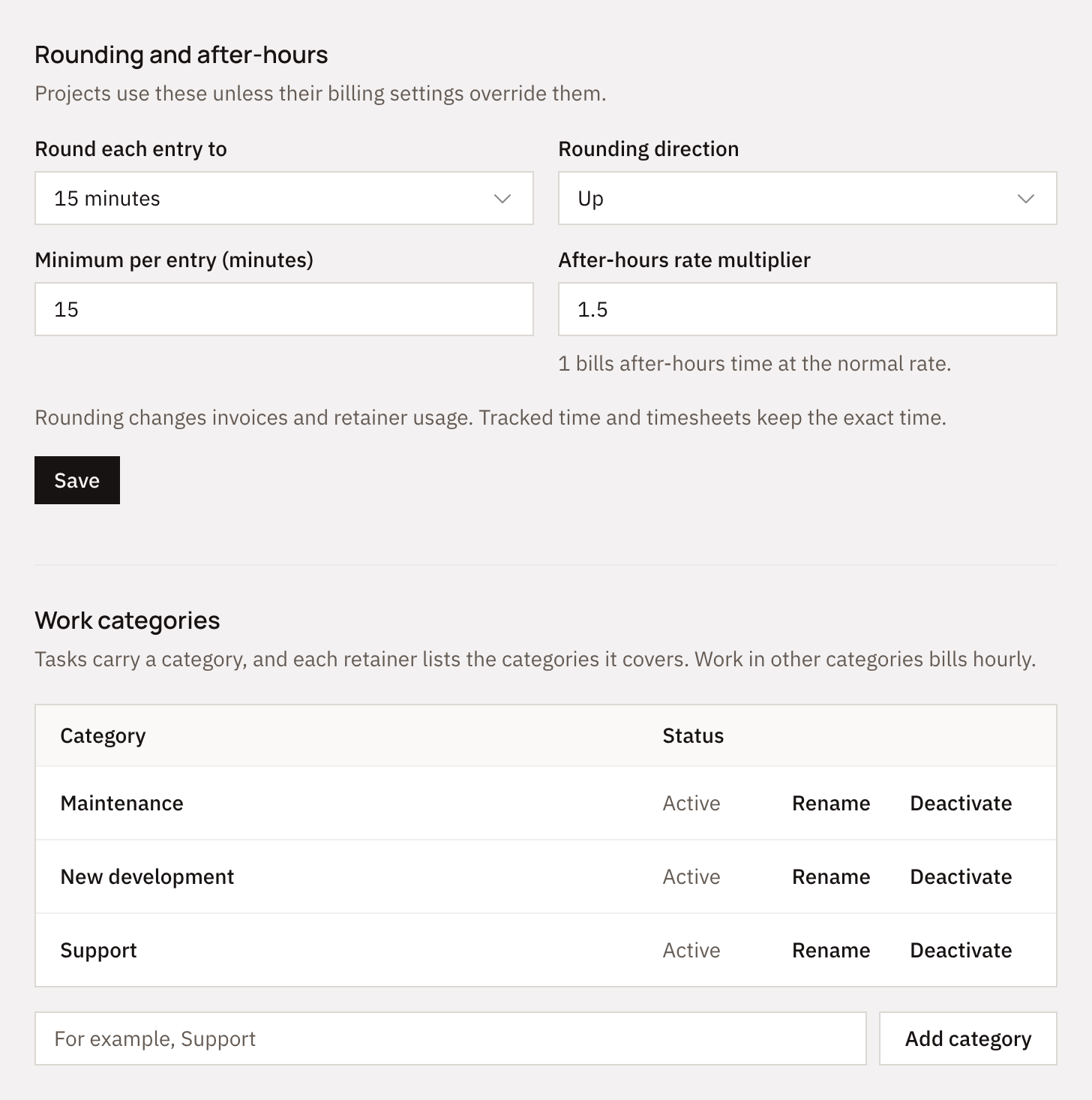
Two organization settings shape every retainer. Set them once in Organization settings, under Time billing.
 (opens full size in a new tab)
Choose how time rounds
Round each entry to an increment, such as up to the next 15 minutes, and set a minimum per entry if you charge one. Rounding applies to retainer usage and hourly invoices alike.Set the after-hours multiplier
Time outside your business hours can bill at a higher rate, such as 1.5×. Set your hours under Business hours in the same settings. Leave the multiplier at 1 if you don't charge extra.Add work categories
Categories such as Support, Maintenance and New development let a retainer cover some work and not others. Skip them if the retainer covers everything you do for the client.
Work the retainer doesn't cover bills hourly at your team's rates. Set each person's rate under Team, or give the project its own rates on its Team rates tab.
Add the client and their project
Add the client
In Clients, choose New client and enter their name and billing email. Add their tax details if you invoice with tax.Create the project
Open the client and choose New project. Pick the currency you'll invoice the retainer in. A retainer belongs to one project, so create a project for each agreement.
Set up the retainer
Open the project and go to its Billing tab. A project without a retainer bills hourly. Choose Set up retainer.
 (opens full size in a new tab)
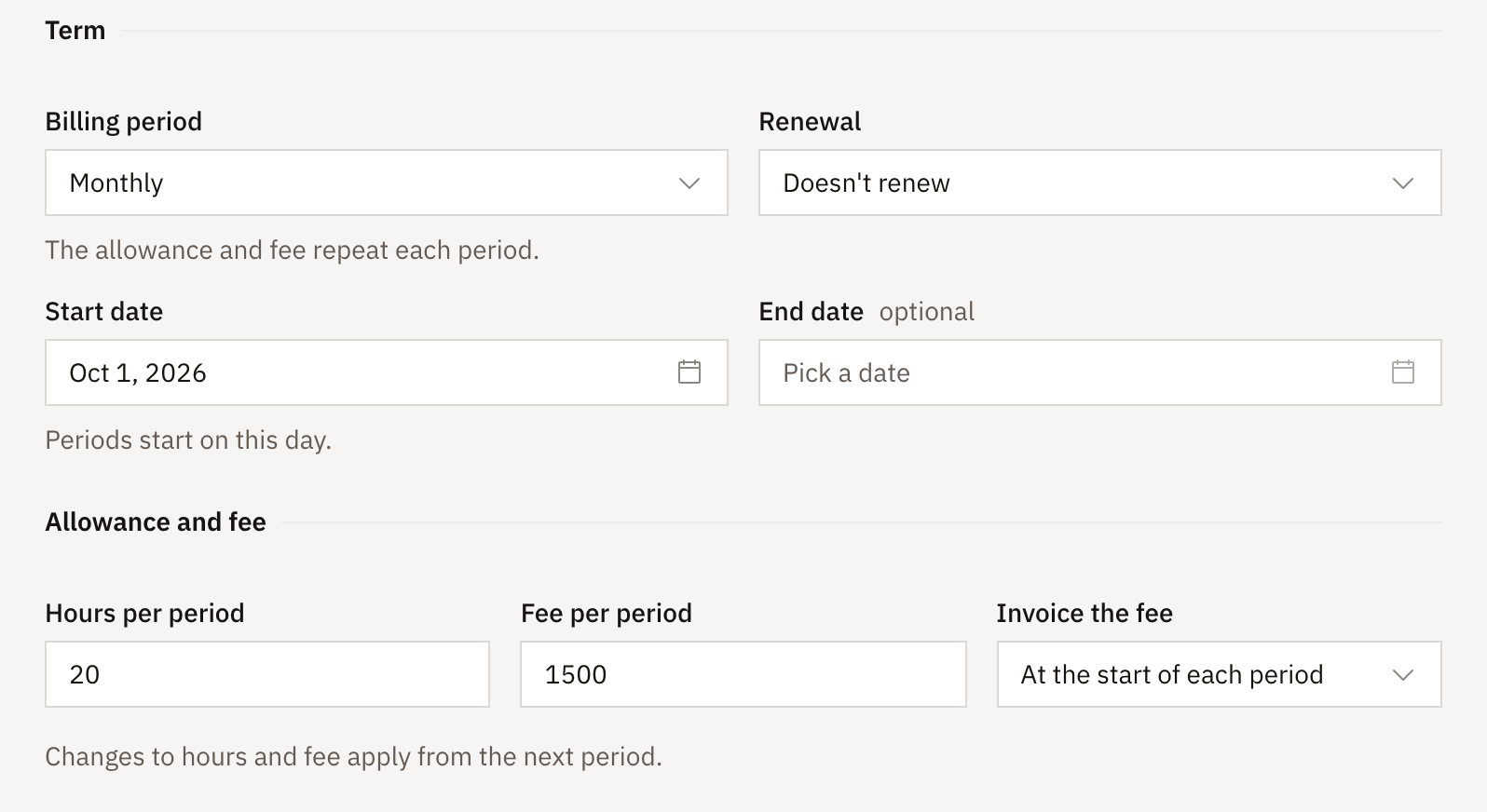
Term, hours and fee
 (opens full size in a new tab)
- Billing period
- Monthly, quarterly or annual repeats the hours and fee each period. Whole term gives one allowance and fee for the contract and needs an end date.
- Start date
- Periods start on this day. A retainer starting on the 15th runs from the 15th to the 14th.
- End date and renewal
- Leave the end date empty for a retainer that runs until you end it. With an end date, choose whether it renews automatically on the same terms or you renew it yourself. To renew, open the project's Billing tab and choose Renew. The new term starts the day after this one ends, with the same terms unless you change the hours, fee, overage rate, end date, renewal or notes. Zentract reminds you 14 days before a manual renewal is due and again on the last day.
- Hours and fee
- The hours included each period and the fee for them. Invoice the fee at the start of each period, or when it closes.
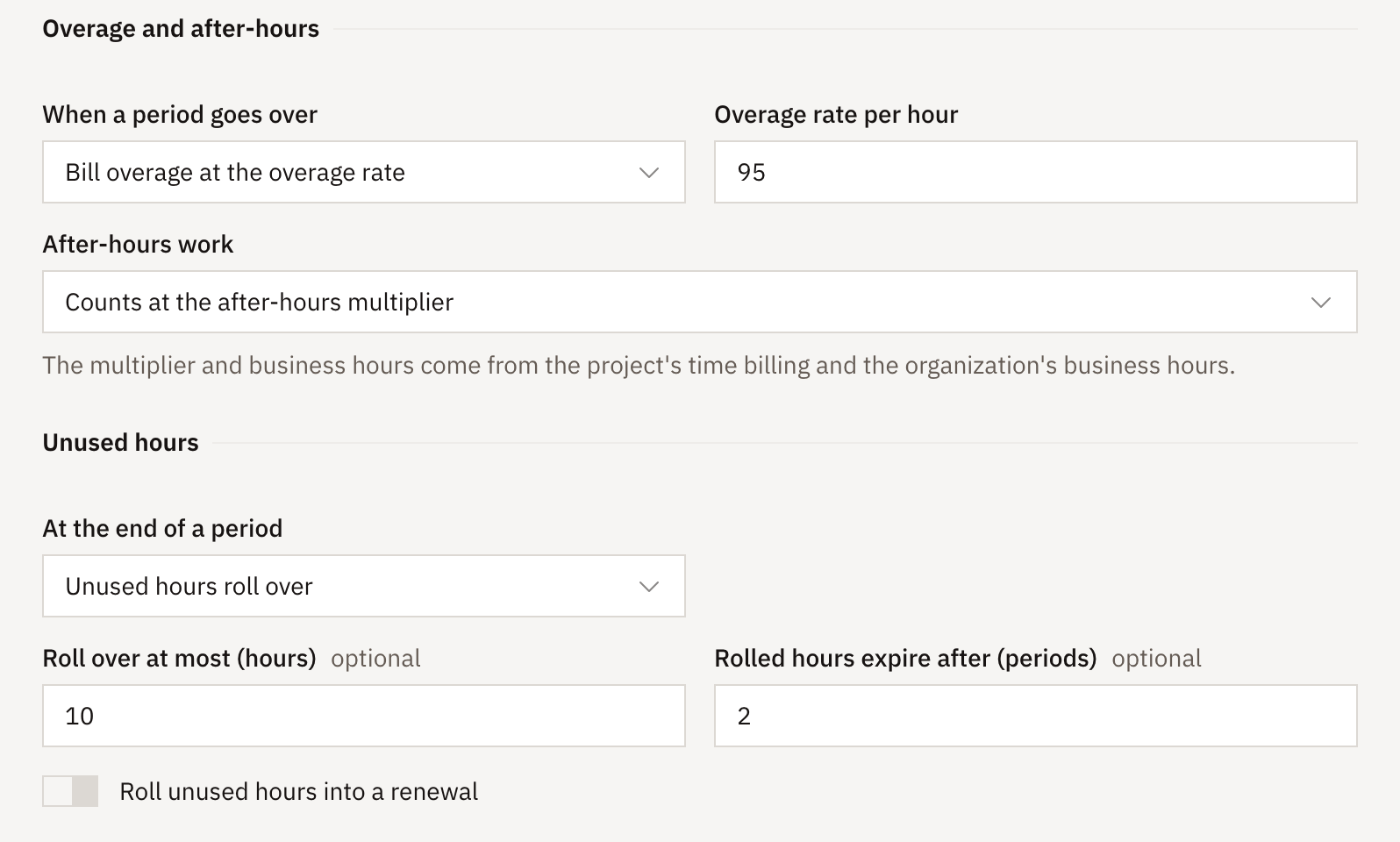
Overage, after-hours and unused hours
 (opens full size in a new tab)
- When a period goes over
- Bill overage at the overage rate when the period closes, deduct it from the next period's hours, or don't bill it. Don't bill overage still records it, so you can see when the plan is too small.
- After-hours work
- Count it like other hours, count it at the after-hours multiplier (1.5 hours used for each hour worked at 1.5×), or leave it out of the retainer and bill it separately at the after-hours rate.
- Unused hours
- Let them expire, or roll them over to the next period. Cap how many roll over and how many periods they last. Rolled-over hours are used first.
Covered work
 (opens full size in a new tab)
Check the categories the retainer covers, or leave them all unchecked to cover everything. Tasks without a category always count against the retainer. Only billable tasks count.
Finally, set when admins and managers are alerted, by default at 80% and 100% of the period's hours, and note the terms of the agreement. Choose Create retainer.
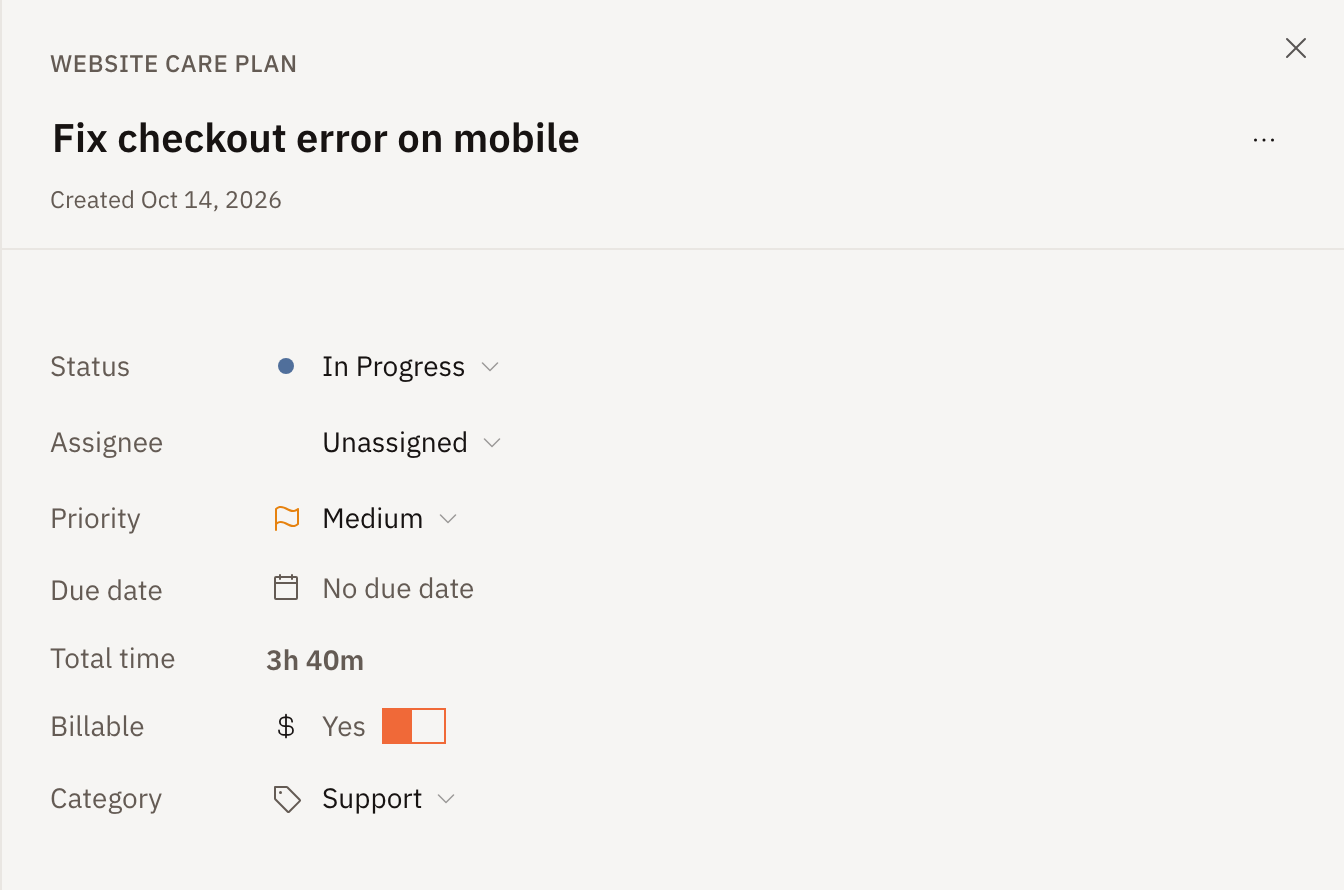
Give tasks a category
When the retainer covers some categories and not others, set the category on each task. Time logged on the task follows it.
 (opens full size in a new tab)
Each period
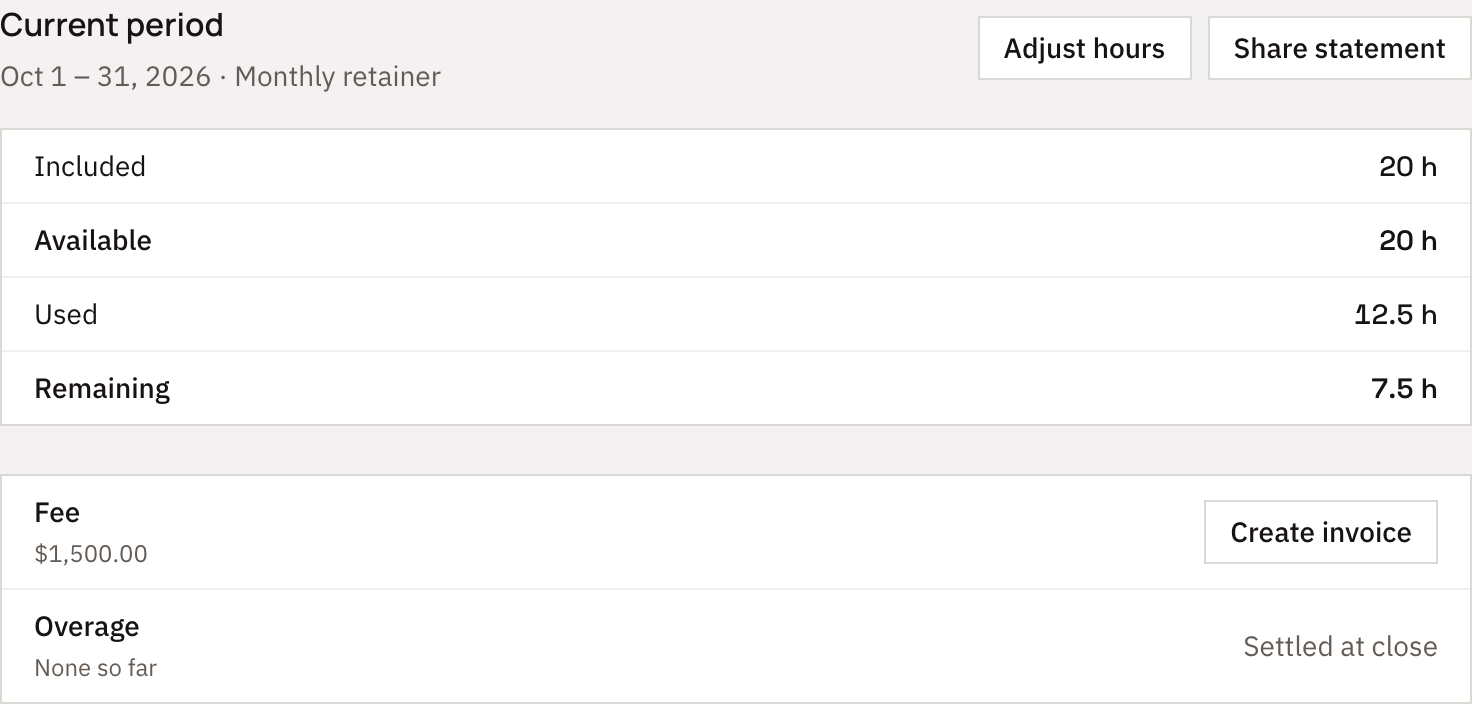
The project's Billing tab shows the current period: the hours available, used and remaining, and the fee and overage it can invoice.
 (opens full size in a new tab)
- Create invoice
- Drafts an invoice for the period's fee, or its overage once the period has closed. Each charge is invoiced once.
- Adjust hours
- Adds or removes hours in the current period, with a reason. Use it for goodwill hours or to correct a closed period.
- Share statement
- Sends the client a link to the period's hours: what was included, what was used, and the work it went on. Add a password or an expiry if you like.
- When the period closes
- Zentract records the final usage, settles overage as you chose, rolls over or expires unused hours, and opens the next period. Closed periods are listed under Past periods.
See where the client stands
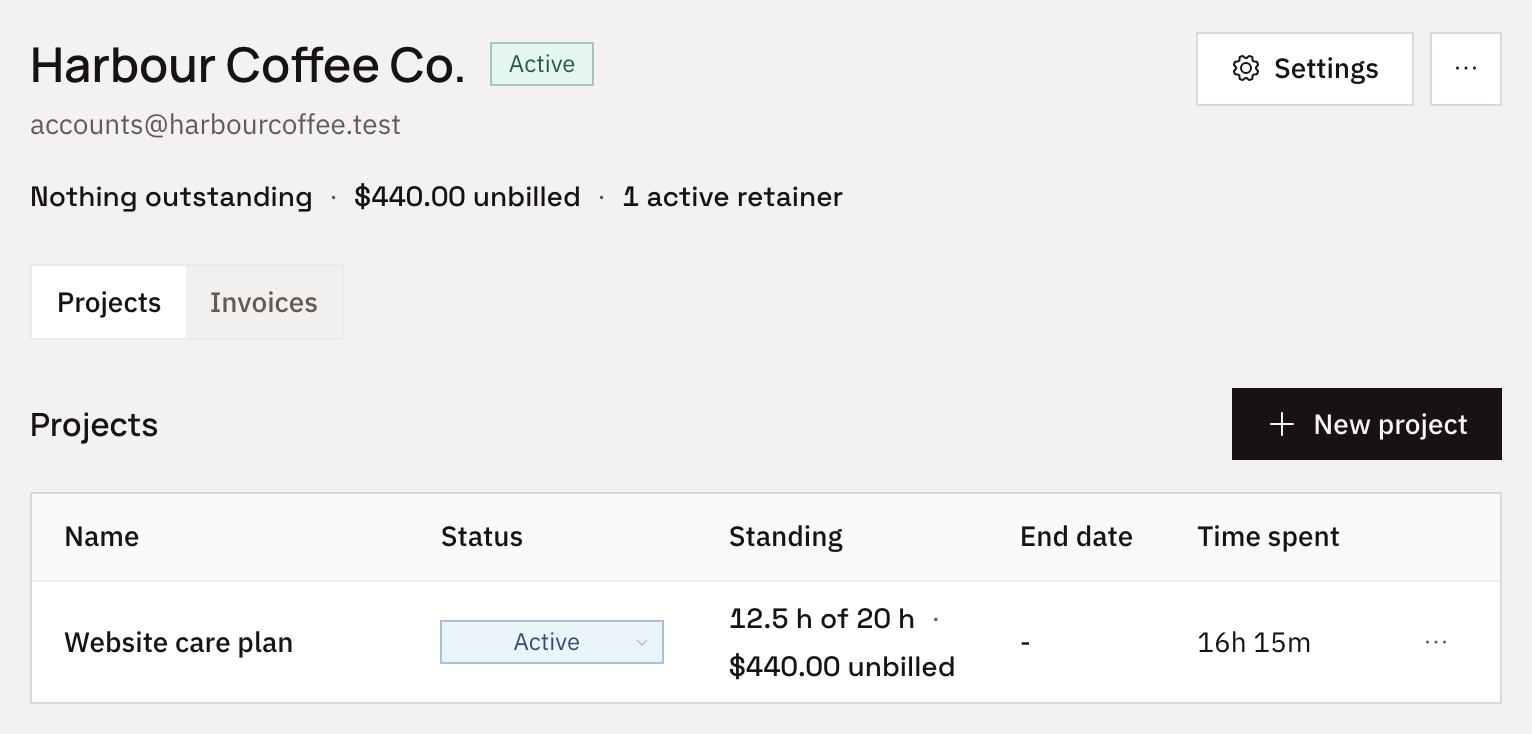
The client's page sums up all their projects: what they owe, what's unbilled, and how many retainers are running. Each project shows its hours used against the allowance.
 (opens full size in a new tab)
Questions
- Who can set up a retainer?
- Admins and managers. They also see the project's Billing tab and get the usage alerts. Other team members track time as usual.
- Can I change the hours or fee partway through?
- Yes. Edit the retainer in the project's settings. New hours and fees apply from the next period, so the current period keeps what the client already agreed to.
- What if time is logged against a period that has already closed?
- A closed period doesn't change. Correct the current period with Adjust hours and give a reason.
- Is retainer time ever billed again on an hourly invoice?
- No. Hourly invoices leave out time a retainer covers. Work in categories the retainer doesn't cover, and after-hours time you chose to bill separately, still goes on hourly invoices.
- Does rounding change the time my team logged?
- No. Rounding changes billing figures only: invoice lines, retainer usage and unbilled amounts. Timers, timesheets and time spent keep the exact time.
- Can I sell a block of hours instead of a monthly plan?
- Yes. Choose Whole term as the billing period and set an end date. The client gets one allowance and one fee for the whole contract.